
Getting your digital signage up and running with DotSignage and the Amazon Signage Stick is straightforward. This guide takes you through each step, from unboxing your device to displaying content on your screens.
Before you start: Make sure you have an Amazon account ready. New to Amazon? Create your account here.
Step 1: Unbox and Connect Your Device
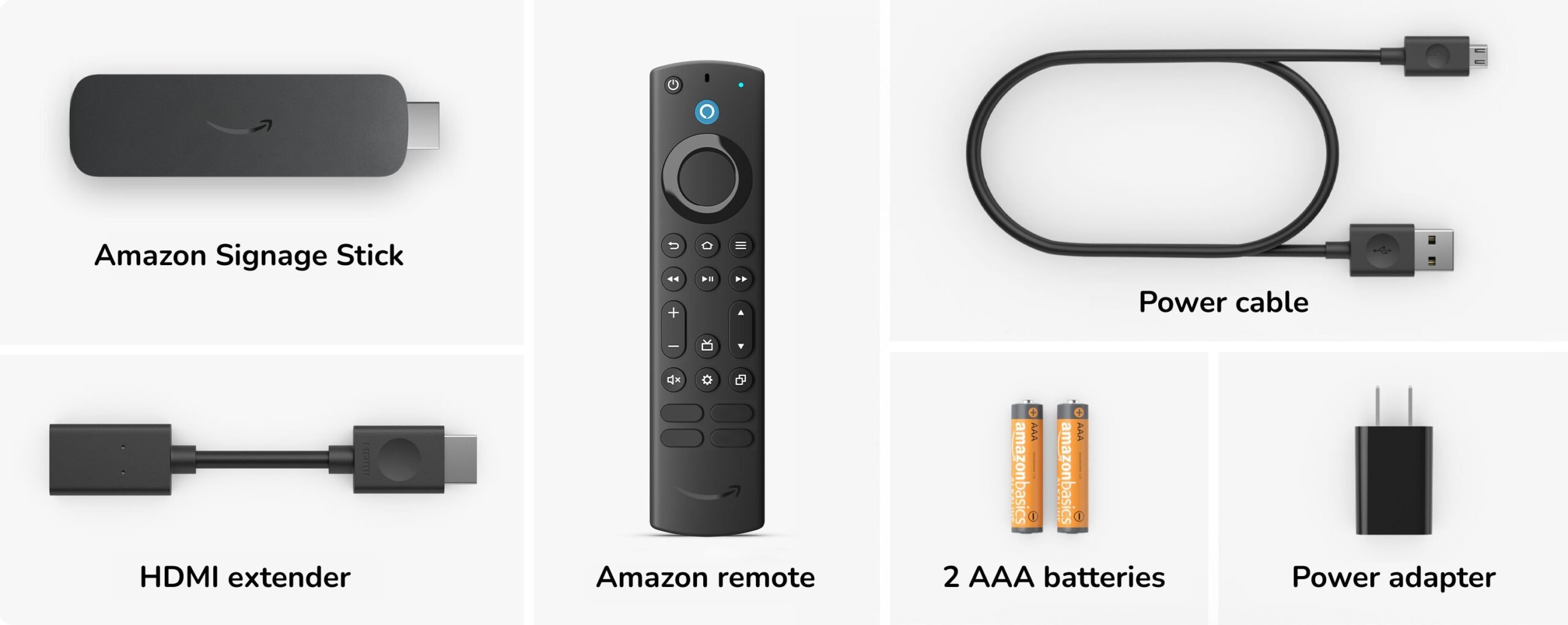
- Remove the Amazon Signage Stick from the box
- Insert batteries into the remote control
- Connect the power adapter to the device and plug it into an outlet
- Connect the HDMI cable from the device to your display screen
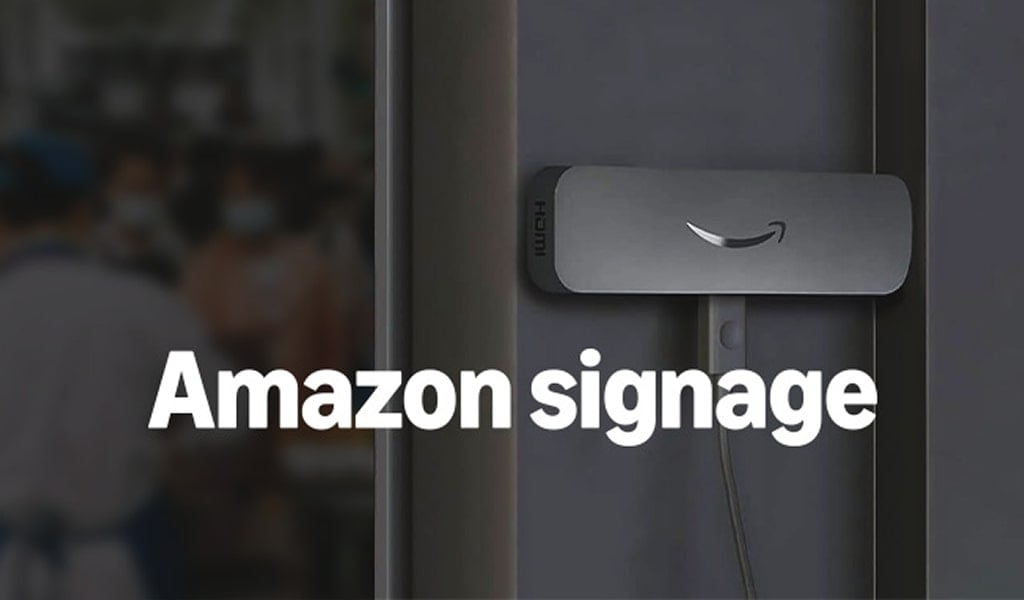
- The device will power on automatically and show the Amazon logo

Step 2: Configure Network and Basic Settings
- Press and hold the Home button for at least 10 seconds until the LED rapidly flashes amber
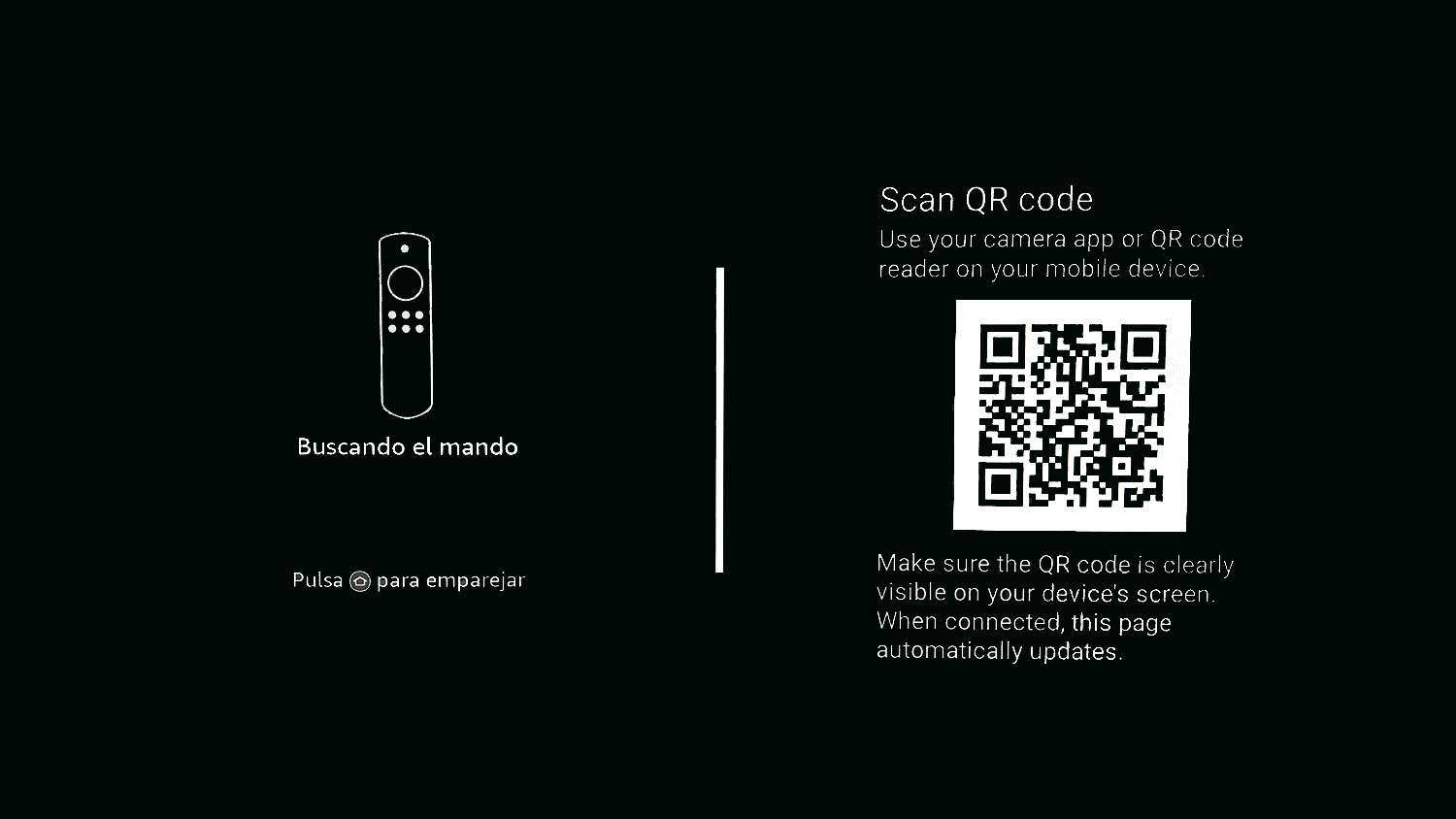
- Press the play/pause button when prompted to begin setup
- Select your preferred language

- Choose your WiFi network and enter the password
- Wait for the “Connection successful” message
- Allow the device to check for updates (this takes a few moments)
- A 6-digit registration code will appear on screen with the link: console.signage.amazon.com

Step 3: Register Your Device with Amazon
- Open a web browser and go to console.signage.amazon.com
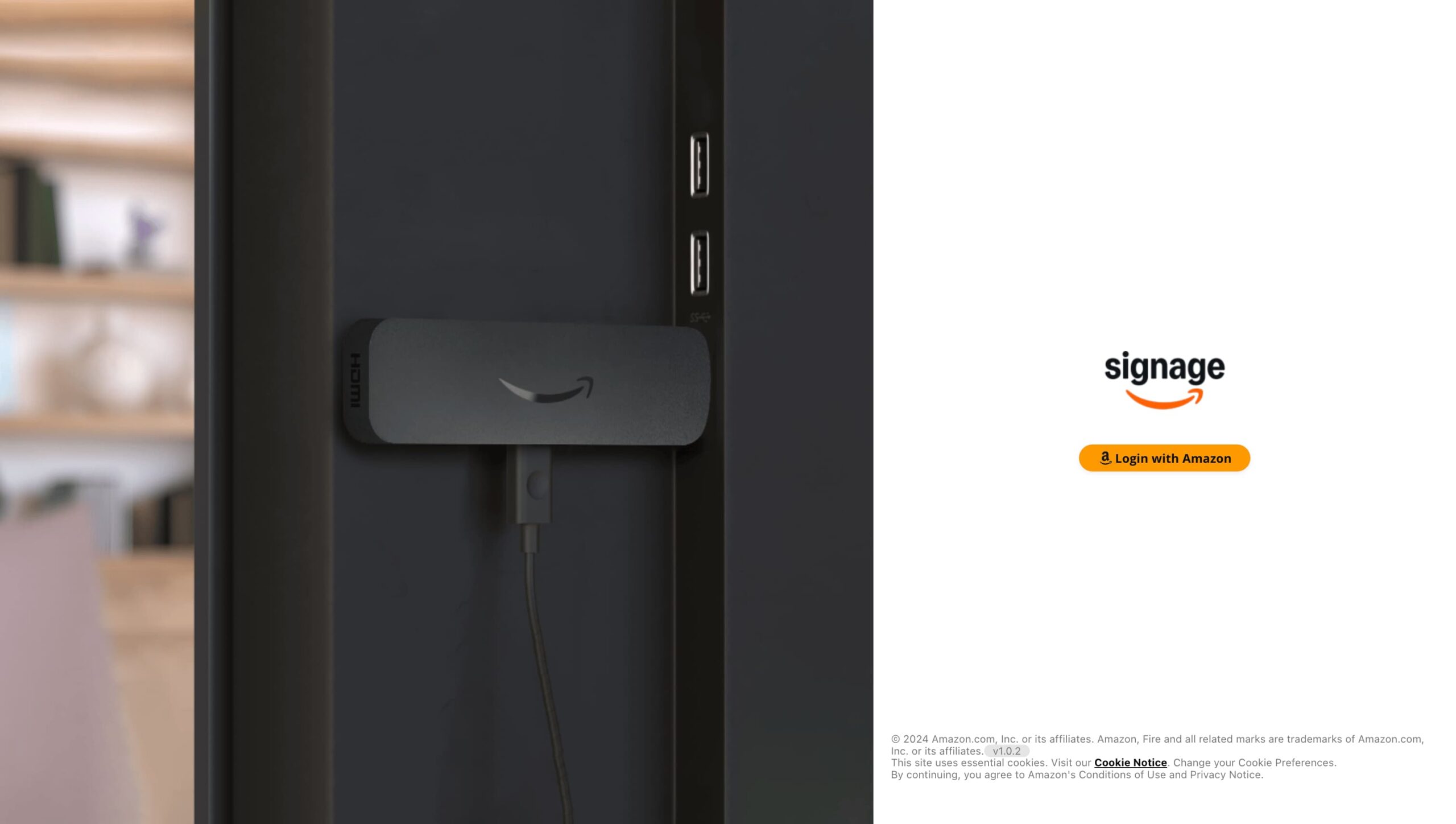
- Click “Login with Amazon” and authorize access
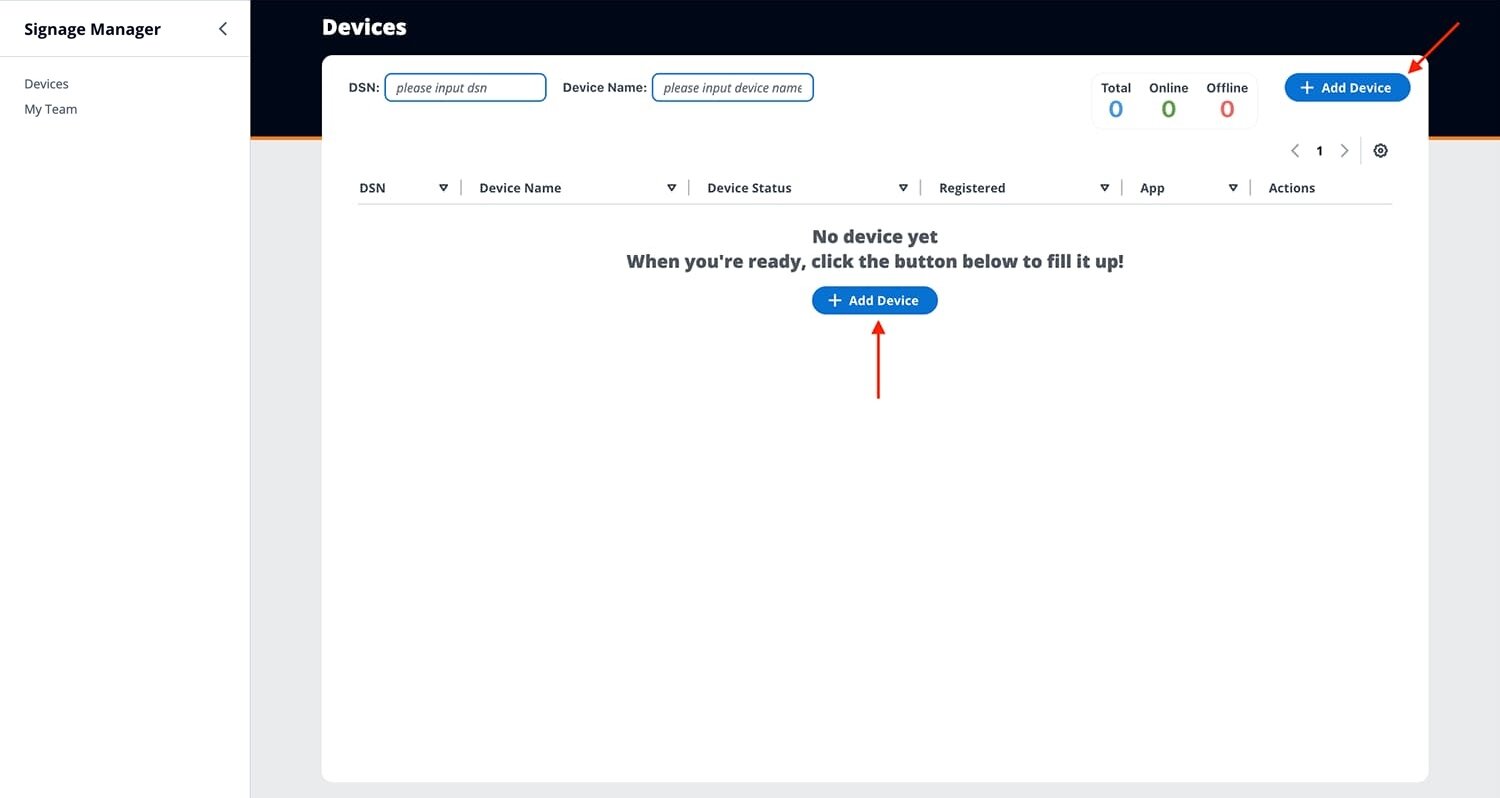
- Click the “+ Add Device” button (first-time users will see the setup screen automatically)
- Under Apps, select DotSignage
- Enter the 6-digit code from your screen
- Click Save
- Your device will now appear in your Devices list
Step 4: Install and Configure DotSignage
- The device will automatically download and install the DotSignage player app
- Once complete, DotSignage will launch and display a pairing code
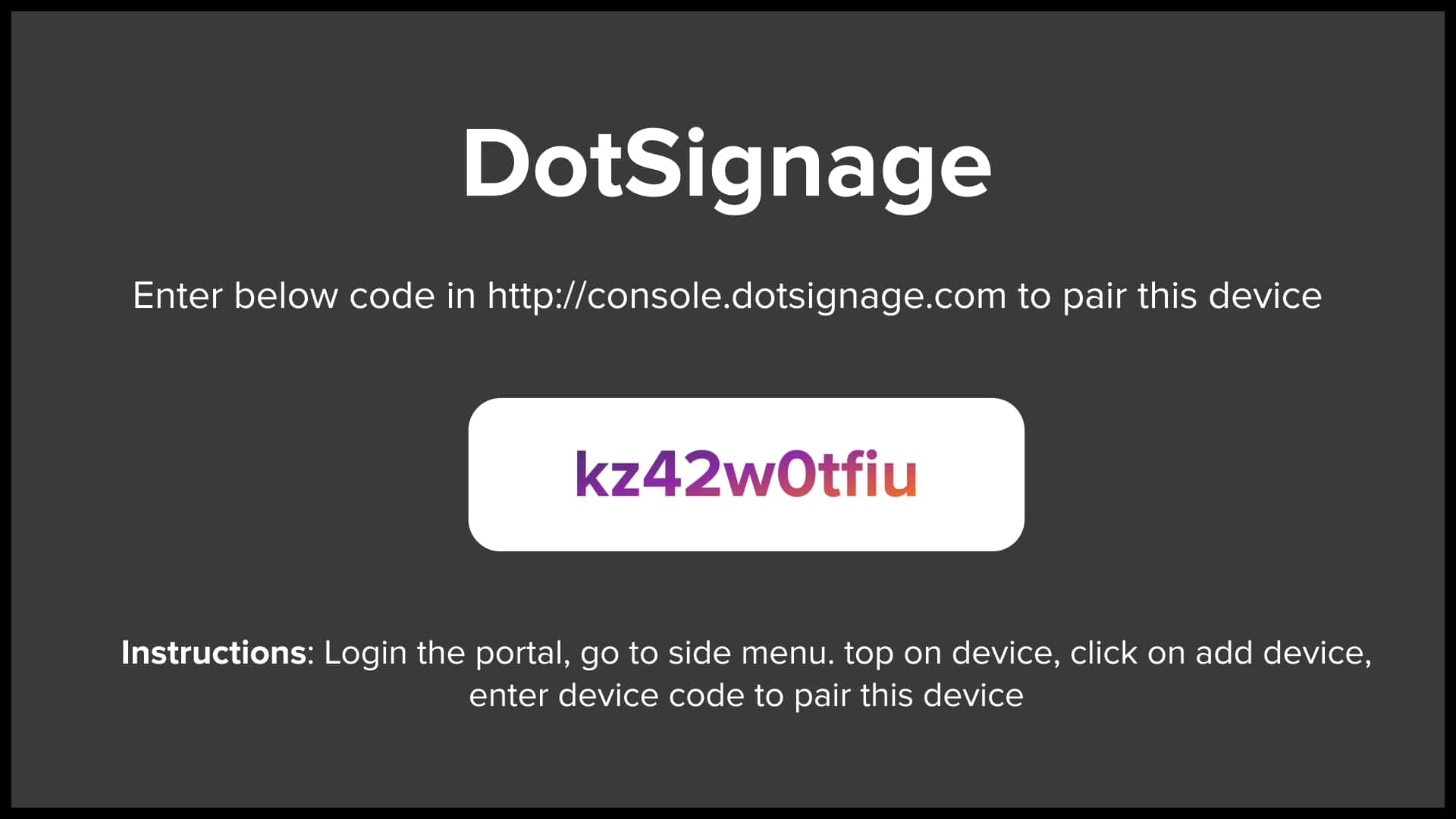
- Your device is now ready! Use the pairing code to connect to your DotSignage account
Frequently Asked Questions
No, the application runs in kiosk mode to ensure continuous display. Using the Home button, Back button, or any exit functions will simply reload the DotSignage app. This design prevents accidental interruptions to your signage.
You can check your device’s connection status through:
- Amazon Signage Mobile App (iOS & Android): View device status on the home screen – devices will show as online or offline
- Signage Manager Portal: Log into console.signage.amazon.com to see all connected devices
- Note: Status updates may take a few moments to reflect due to network traffic
First, log into your Amazon Signage console at console.signage.amazon.com and remove the device from your list by clicking the trash icon and confirming deletion.
Next, factory reset your device by following these steps:
- Press Options on the remote
- Navigate to System
- Choose Reset options
- Select Erase all data (factory reset)
- Confirm by selecting Erase all data twice
- The device will display a shutdown message and restart
After the reset is completed, press and hold the HOME button on your remote for 10 seconds while holding it near the device to reconnect.
For additional help with your Amazon Signage Stick, visit Amazon’s support portal at support.signage.amazon.com.

About Smit
Smit Nebhwani, a tech entrepreneur with over a decade of experience, specializes in building successful SaaS products. An authority in digital signage, he shares valuable industry insights through his content. In his free time, he enjoys music, traveling, and family time.
Share this post: